Getting Started with Vendifi
Jan 21, 2026
Getting Started with Vendifi
Your interactive guide to vendor lifecycle management — navigate the platform, complete your training and manage suppliers with confidence.
Vendifi is a vendor lifecycle management platform, hosted directly in your SharePoint environment. It gives your team a single place to register suppliers, complete due diligence, manage onboarding tasks and monitor your overall supply chain risk.
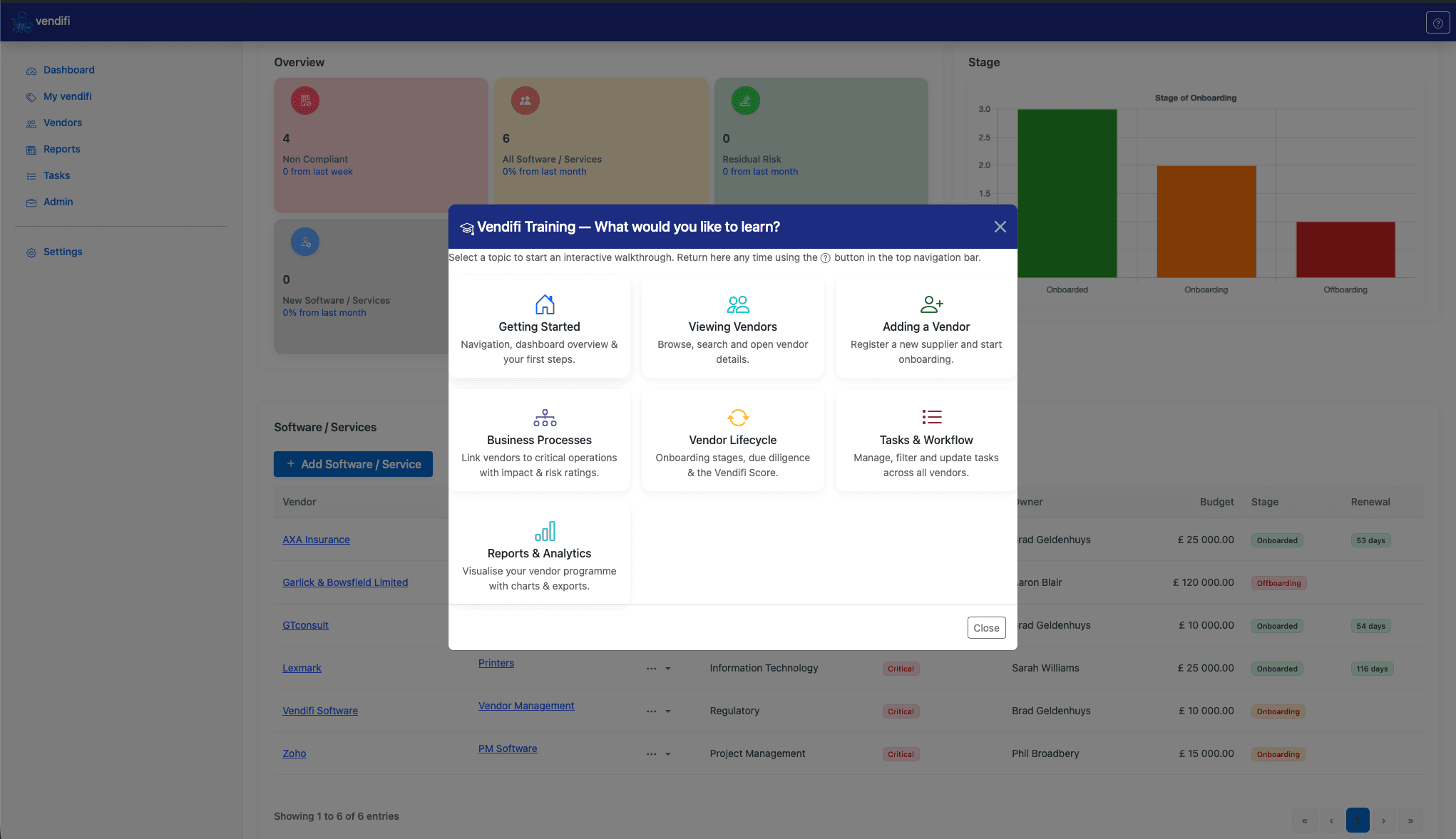
To make it easy to learn, Vendifi now includes a built-in interactive training system. You don't need to read a manual — the platform walks you through each area step by step, right inside the application.
How the Training Works
When you open Vendifi for the first time you will see the Training Menu appear automatically with seven (or nine, for administrators) topics to choose from. Each topic launches a guided walkthrough that highlights the relevant part of the screen and explains what it does.
Tip: You can return to the training menu at any time by clicking the ❓ help button in the top-right corner of the navigation bar.
Available Training Topics
🏠 Getting StartedNavigation, dashboard overview & your first steps. | 👥 Viewing VendorsBrowse, search, filter and open vendor details. | ➕ Adding a VendorRegister a new supplier and start onboarding. |
🔀 Business ProcessesLink vendors to critical operations with impact & risk ratings. | 🔄 Vendor LifecycleOnboarding stages, due diligence & the Vendifi Score. | ✅ Tasks & WorkflowManage, filter and update tasks across all vendors. |
📊 Reports & AnalyticsVisualise your vendor programme with charts & exports. | 💼 Admin Config AdminDepartments, locations, onboarding & off boarding processes. | ⚙️ Settings AdminCompany details, compliance framework & branding. |
Topic Walkthroughs — What to Expect
1. Getting Started
This tour is the best place to begin. It introduces the navigation sidebar, the five main sections (Dashboard, Vendors, Tasks, Reports, Admin) and shows you how the main content area updates as you move through the application.
Introduction to the navigation sidebar
Finding the Vendors, Tasks and Reports sections
Overview of the main content area
How to use the ? help button to return to training
2. Viewing Vendors
Takes you directly to the Vendor Directory and walks through the table, search box, export buttons and how to open a vendor's full detail panel.
The vendor table — columns and what they mean
Real-time search and column filters
Exporting vendors to Excel or PDF
Opening a vendor and reading the detail panel (contacts, documents, tasks, Vendifi Score)
3. Adding a Vendor
Step-by-step guide to registering a new supplier. The tour covers the new vendor form, key fields you must fill in, and what happens automatically once you save.
Finding the Add Vendor button in the vendor table toolbar
Completing the vendor registration form
Choosing the correct Category of Service
Setting the Risk Tier (Tier 1 = critical, Tier 3 = low risk)
Saving — Vendifi automatically generates all onboarding tasks based on the vendor's tier
4. Business Processes
Explains how to link a vendor to the internal business operations that depend on them — and why this matters for your risk score.
What a business process record represents
How to add and edit business processes on a vendor
Impact rating: Critical or Non-critical (what happens if this vendor fails?)
Risk rating: High, Medium or Low (how likely is failure?)
How these ratings feed into the Vendifi Score
5. Vendor Lifecycle & Due Diligence
Covers the four lifecycle stages every vendor passes through and explains the due diligence questionnaire process that produces the Vendifi Score.
Stage | Description |
|---|---|
Onboarding | Vendor has been registered. Tasks are being completed for the first time. |
Onboarded | All initial tasks are complete. Vendor is active in the supply chain. |
Offboarding | The relationship is ending. Exit tasks are being completed. |
The tour also shows you how to open a due diligence task, work through the compliance questions, and understand the Comply / Mitigate / Accept responses and how to attach evidence documents.
6. Tasks & Workflow
Everything you need to know about managing your task list efficiently.
Reading the status summary blocks (Overdue, In Progress, Awaiting Vendor, Not Started, Complete)
Switching between All Tasks, My Tasks and Closed Tasks
Opening a task to view its details and update its status
Understanding overdue indicators — tasks past their due date appear highlighted in red
7. Reports & Analytics
Shows you how to generate and read the chart reports available in Vendifi.
Navigating the Reports section
Vendor distribution charts (by division, category and lifecycle stage)
Exporting report data to Excel
Using charts to identify supply chain concentration risk
8. Admin Configuration Administrators only
If you have administrator access, this tour covers the configuration tables that drive how Vendifi operates for all users: departments, locations, contract types and the onboarding/offboarding process templates.
9. Settings Administrators only
Covers your company profile, logo, compliance framework selection and other organisation-wide settings.
Training Progress Tracking
Vendifi tracks each user's training completion centrally in SharePoint. As you finish each tour, it is marked off automatically. Administrators can see a summary of who has completed training across the organisation by visiting the Users list in the Vendifi SharePoint site.
For administrators: To check training completion across your team, go to Site Contents → Users. The ToursCompleted column shows which tours each person has finished, and AllToursComplete is checked once every applicable tour is done.
Frequently Asked Questions
The training menu appeared when I first opened Vendifi — do I have to do it now?
No. You can close the menu at any time and come back to it later using the ? button in the top navigation bar.
Can I repeat a tour I have already done?
Yes. Open the training menu using the ? button and click any topic to start it again regardless of whether you have done it before.
Can I complete the tours out of order?
Absolutely. Jump to the topic most relevant to what you are doing right now. The suggested order above is simply a recommended learning path for new users.
I don't see Admin Config or Settings in the training menu.
Those two topics are only shown to users with Vendifi administrator access. If you need admin access, contact your Vendifi site administrator.
The tour seems to be pointing at the wrong part of the screen.
This can happen if the page is still loading when the tour starts. Close the tour, wait a moment for the page to fully load, then re-open the training menu and try again.
I completed a tour but my progress doesn't seem to have saved.
Training is saved automatically when you click Done at the last step or close the tour. If you navigate away mid-tour, progress for that topic is still recorded. If you continue to see issues, check with your SharePoint administrator that the Users list exists in the Vendifi site.
Tips for Getting the Most Out of Vendifi
Start with Getting Started — even if you have used similar tools before, it takes less than two minutes and will save you time navigating later.
Do the Vendor Lifecycle tour before you add your first vendor — understanding how due diligence tasks are generated will help you set the right tier from the beginning.
Use My Tasks as your daily dashboard — the Tasks section filtered to My Tasks is the fastest way to see what you personally need to action today.
Export reports to Excel regularly — reports can be saved and shared with stakeholders who don't have direct access to Vendifi.